Oracle Enterprise Manager is a great solution to get a 360 view on your complete IT landscape and to enable the IT staff from you company to act fast and become more efficient. Even though you have a enormous set of options within Oracle Enterprise Manager and with the move to cloud management they make a very good case for the tool there are still some points. First and foremost is that the price is on the high side. If you already have invested for years in optimizing your IT the costs for the final optimization in the form of Oracle Enterprise Manager can come as a shock as the benefits will not be that extreme. Second thing is that you can see possibly to much.
For a tool that provide you a complete view on your hardware, operating systems, databases and applications from one single tool that might sound a little strange however it is true. Without a good and well thought setup plan your administrators will be to overwhelmed to be efficient. It is of vital importance that you think about who can see what and who can do what. In essence everyone within your own organization should be able to see everything however their main dashboards should be tuned to show them the most important and critical information when they open Oracle Enterprise Manager. For example a UNIX administrator will not have to see all the database information on his first screen, what this person needs is the information of all the servers running. By default you get a somewhat overwhelming screen as shown below;
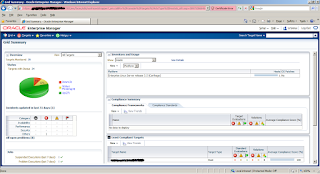
You can change this by navigating to “setup” > “My Preferences” > “Select my Home”. By default you have 7 options in this screen where you can pick the most appropriate for your daily job. You have the following options:
Summary: Summary page provides a complete and consolidated view of targets monitored by Enterprise Manager.
Databases: Monitor any database instance or RAC database right on the homepage. Check the load, memory consumption and any issues related to the target.
Incidents: Incident console helps users track, diagnose and resolve issues identified across targets by Enterprise Manager.
SOA: An enterprise level view for all the SOA targets with the Alerts, Policy Violations, and critical metrics. It provides details of SOA Composites, BPEL 10g Process, OSB Services and Web Services.
Middleware: Monitor all middleware targets in your environment from this page.
Composite Application: An enterprise level view of Composite Applications. It provides list of all Composite Applications created with their member details along with status information.
Service Request: The Service Request page provides access to the Service Request creation and management features in My Oracle Support, Oracle's customer support portal.
Selecting one of those will change the default first page to a more appropriate page for your day to day job.


